DocsTemplates & site structure
Draft sites, snapshots and regenerating
Native WP AI → Site shows what your website is made of, builds a new design as a draft beside the live site, and keeps snapshots you can restore — without ever deleting your content.
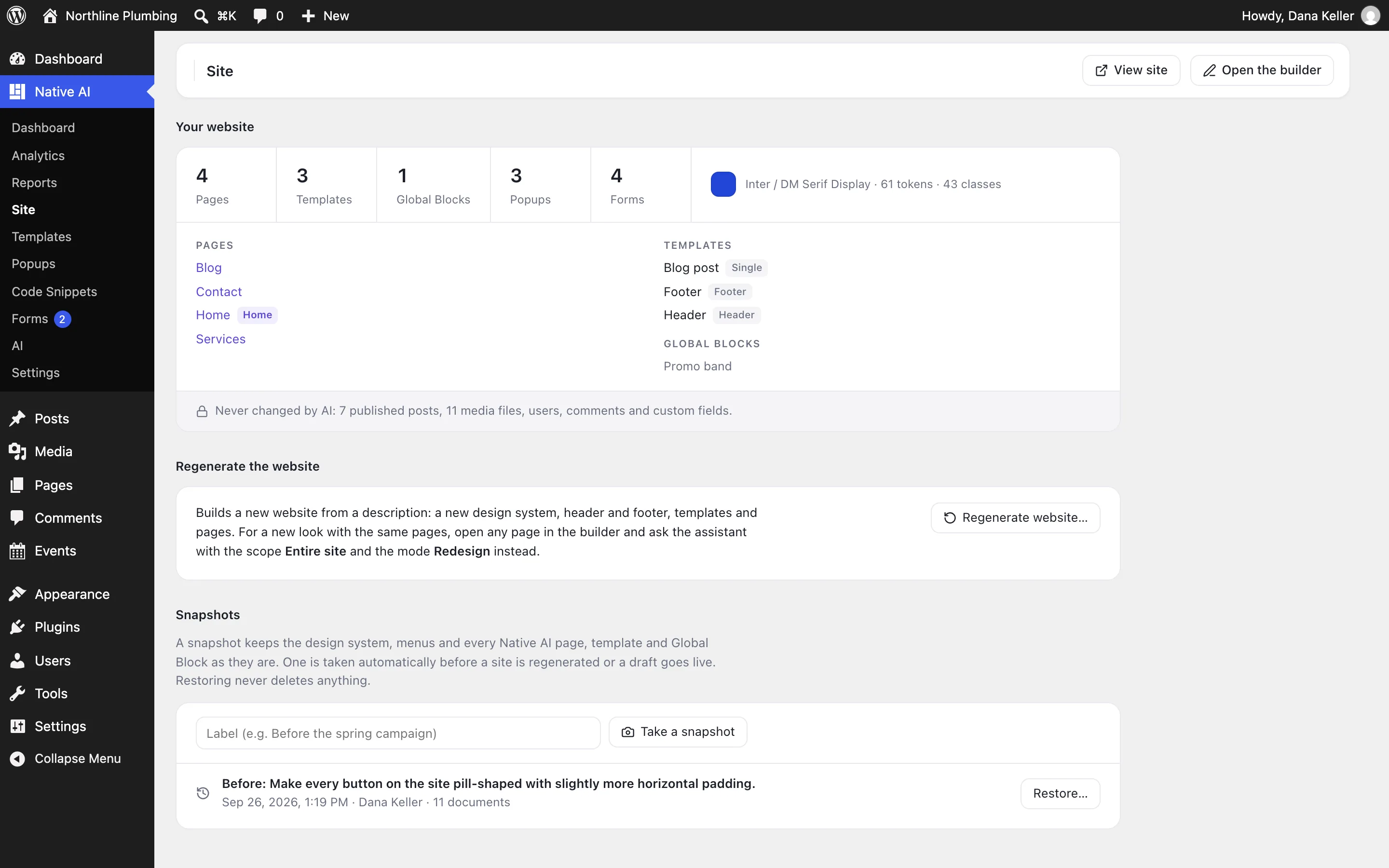
Open Native WP AI → Site (administrators). It shows your website — pages, templates, Global Blocks, popups, forms and the design system — and what Native WP AI never changes.
Draft sites#
A draft site is a complete new design built beside your live site, with its own design system, menus, pages and templates. Visitors keep seeing the live site.
- In the builder, a Draft site pill shows you’re editing the draft; saves go to the draft, and Publish becomes Go live….
- Administrators can preview the draft on the real site — its design, menus, header, footer and home page — with links that stay in the preview.
- Go live… takes a snapshot first, makes the draft’s design and menus the site’s, publishes its pages, switches off (never deletes) live templates it replaces, keeps replaced pages as drafts named “…-previous”, and sets the front page.
- Discard… moves the draft’s documents to the trash.
Regenerate the website#
For a new site from a new description, use Regenerate the website. It’s deliberately separate from the assistant.
- Generate as a new draft site (recommended) builds a draft beside the live site. Give it a name (“Autumn redesign”).
- Replace the existing site changes the live site. Choose what to replace: Theme Styles, the header and footer, templates, pages and their layouts, Global Blocks, forms, interactions and motion, or generated media. Read the warnings, tick that you understand, and type REGENERATE SITE to confirm. A full snapshot is taken first.
Either way, the builder then opens Create Website With AI with your choices confirmed: describe the new website (Improve prompt fills in a fuller brief to edit first) and it’s built, and the AI knows your existing pages, content and business. A draft site, or replacing the Theme Styles, gets a new look the AI designs: it’s told the current one and makes a clearly different one. When you keep the Theme Styles, the new pages use the site’s fonts and colors.
Always kept#
Blog posts, products and orders, the Media Library, users and comments, custom fields, form submissions and code snippets are never deleted or changed by a regeneration, a go-live or a restore.
Snapshots#
A snapshot records the design system, menus, the site’s title and tagline, the front page, a draft site in progress, and every Native WP AI page, template and block. They’re taken automatically before a regeneration or go-live (and by the agent before big changes, as restore points), and whenever you click Take a snapshot — give it a label like “Before the spring campaign”.
- Pick a snapshotIn Snapshots, click Restore… next to it.
- ConfirmClick Restore this snapshot. The current state is snapshotted first.
- DoneEvery document is put back as it was; documents made since become drafts, and pages get their old addresses back. Nothing is deleted.
Related articles
Still have a question? Email us at support.