DocsGetting started
Activate your license
Turn on AI features and plugin updates for a site with your license key, and move a license from one site to another.
A license key looks like NAI-XXXX-XXXX-XXXX-XXXX. It turns on AI features and plugin updates on the sites where it’s active. The builder, templates, forms, popups, analytics, snippets and reports work without one.
Your key is in your account. Create one with your name and email (Start free at the top of this website opens the form): we email a link to confirm the address, then you choose a password (typed twice, to be sure). After that, sign in with your email and password, or ask for a sign-in link by email (that’s also how to get in if you forget your password). A new account starts with a free 14-day trial license for one website, with free AI credits. The account also shows your credits, what used them, the sites using your key, and your name and password under Your details.
Activate a license#
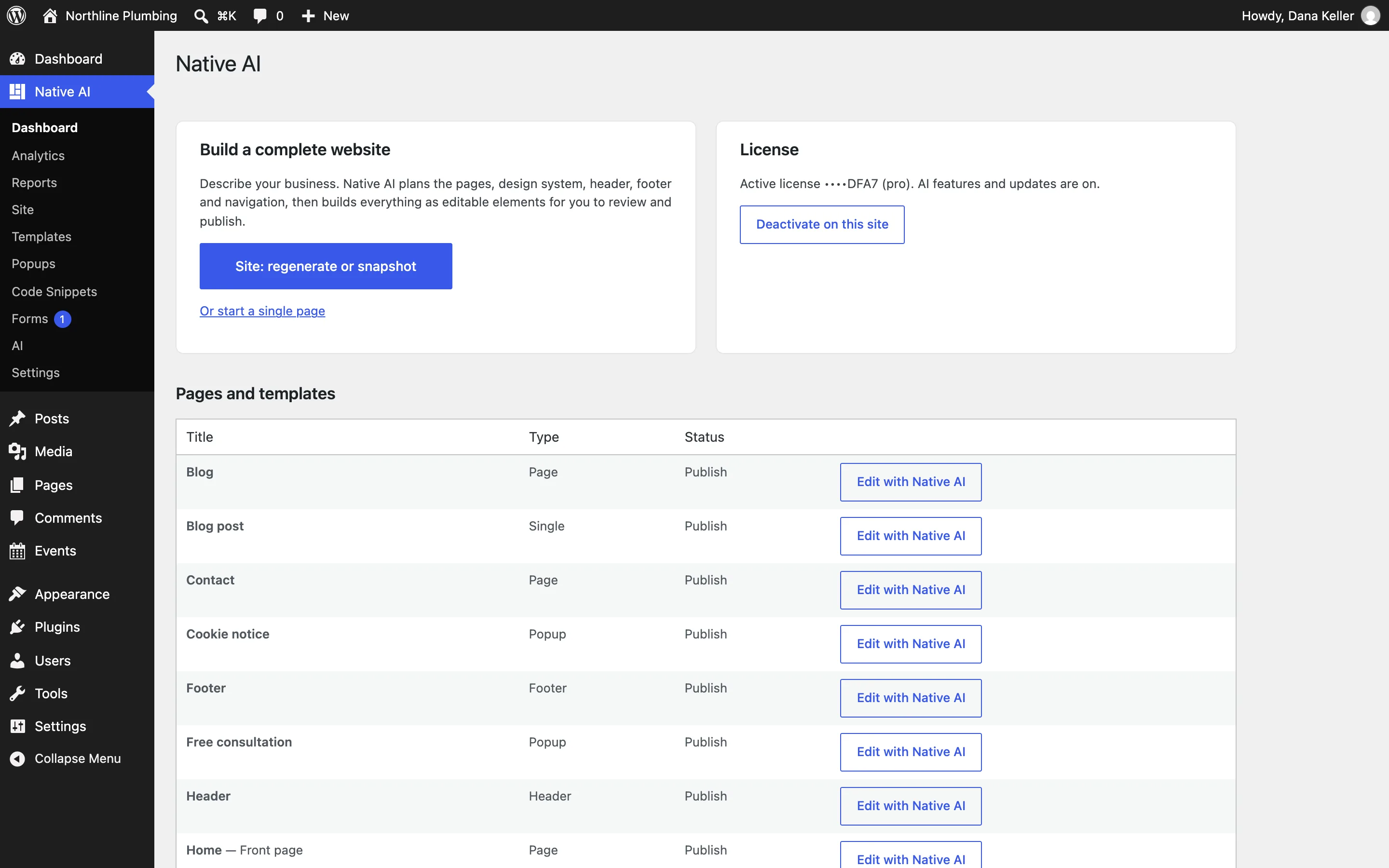
- Open the dashboardIn WordPress, go to Native WP AI → Dashboard.
- Enter the keyPaste your license key in the License card and click Activate.
- DoneYou’ll see “License activated. AI is ready.” The card now shows the active license (its last characters and the plan) and says “AI features and updates are on.”
How many sites#
Each plan allows a number of websites (see Pricing). A site counts once the license is active on it. A staging copy can use the same key if your plan has room.
Move a license to another site#
- Free the old siteOn the old site, open Native WP AI → Dashboard and click Deactivate on this site. If you can’t reach the old site any more, click Disconnect next to it in your account.
- Activate the new siteOn the new site, enter the key and click Activate.
If a license ends#
Your site and the builder keep working, and published pages aren’t affected. AI requests and plugin updates stop until the license is active again; the assistant then says “Your license is expired. Renew it to keep using AI.” (or suspended, or canceled).
If activation fails#
| Message | What to do |
|---|---|
| That license key doesn’t exist. Check for typos. | Copy the key again from your account, with its dashes. |
| This license is already active on 3 sites (the Pro plan allows 3). Deactivate it on another site first. | Deactivate it on a site you no longer use, or move to a plan with more sites. |
| This license is suspended. (or canceled, or expired) | Contact us about the license. |
| Request timestamp is too old. Check the server clock. | Your server’s clock is off by more than five minutes. Ask your host to synchronize it. |
More messages and what they mean: AI and license messages.
Related articles
On the features pages
Still have a question? Email us at support.