DocsAI
Create a website with AI
Describe the business and choose the AI model. The AI designs the whole site — its own fonts, colors, layout and photos — and Native WP AI builds it with native elements you can edit.
Start from Native WP AI → Dashboard (Create Website With AI on a new site), from Native WP AI → Site, or in the builder from Page → Build a new website with AI.
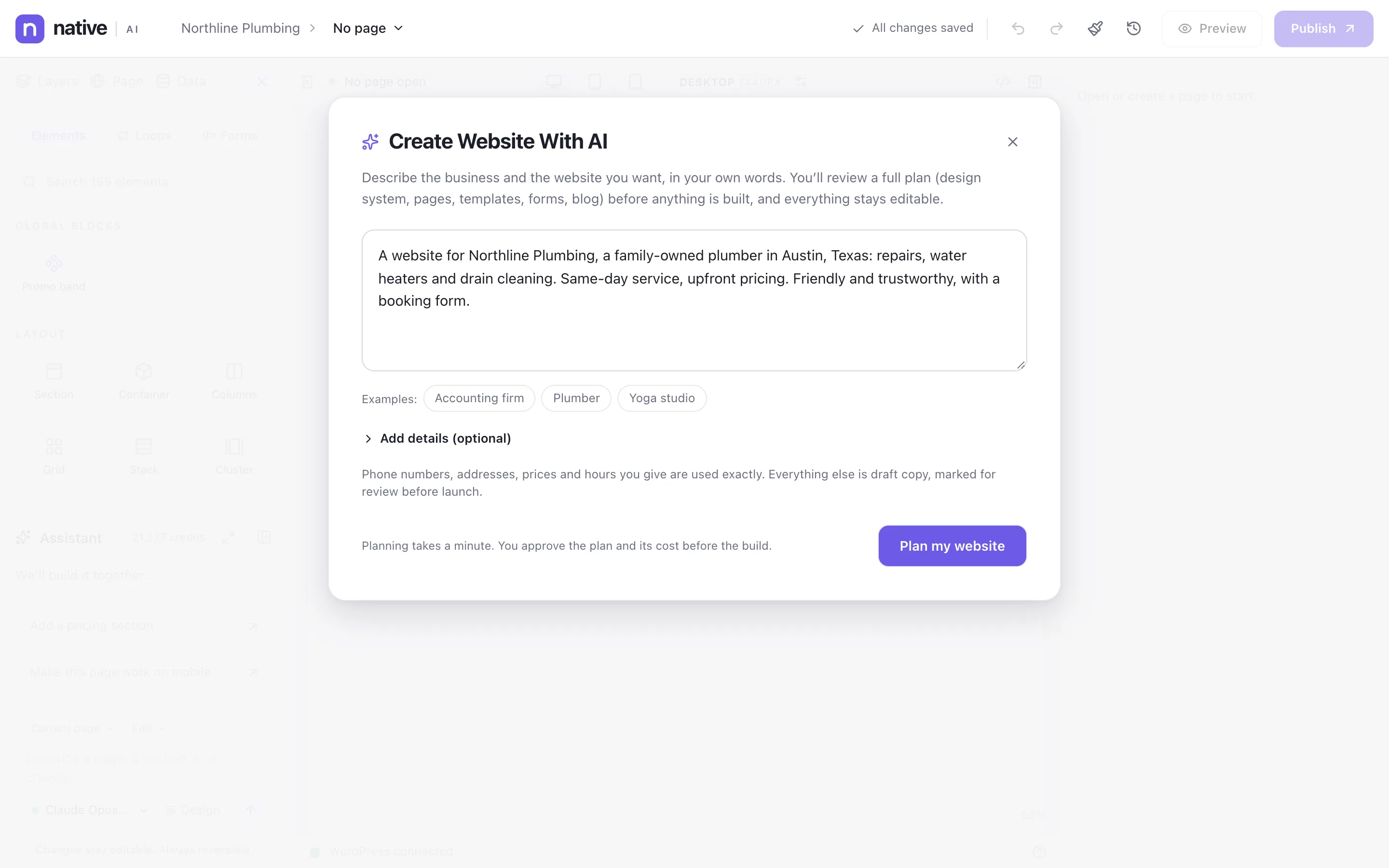
1. Describe the website#
Write a few sentences in your own words: what the business does, where, for whom, the pages you want and the feel — colors or fonts too, if you have them in mind. Examples are there to start from. Add details (optional) has fields for the business name, location, customers, tone of voice, pages you need, and look and feel.
Improve prompt turns what you wrote into a fuller brief for this business, written by the AI model chosen in the Model menu: who the site is for and the one thing it should get visitors to do, the pages and the home page’s sections, and a design direction made for this business — its mood, type, colors (unless you picked them), layout, photography and a signature detail or two — steering away from the look most sites in its industry have. It keeps every fact you gave and invents none. The brief replaces your text so you can read and edit it; Improve again tries once more, and Undo brings back your own words. It uses a few credits and builds nothing; it works on Regenerate too.
You can also give the AI three things, all optional:
- Colors: the business’s main, accent, background and text colors. The site uses exactly the ones you pick; the AI chooses the rest to go with them.
- Logo: upload it and it goes into the Media Library, the AI sees it, and the header and footer show it.
- A design you like: up to three images (screenshots of websites, a mood board). The AI models the design after them, made for your business, without copying their text or photos.
Images (shown when the Native WP AI service can generate images): Real photos, the default, or Generated by AI — an image made for each spot on the site by an image model, charged in credits per image as it’s made (when one can’t be made, a real photo is used instead).
Phone numbers, addresses, prices and hours you give are used exactly. Anything else is draft copy, marked for review before launch. Choose the AI model in the Model menu (the same list as the assistant’s: models appear once their provider’s key is set in the admin), then click Build my website. Building takes a few minutes.
2. How the AI designs it#
First the AI shows what it understood about the business and plans the pages. Then it designs the website the way a web designer would: it writes the home page, the header and the footer as one page in HTML and CSS, choosing the site’s fonts (from Google Fonts), colors, layout and photos. Native WP AI converts that page into native elements, and its fonts and colors become the site’s design system — its tokens and shared classes.
Every other page is written the same way, in the home page’s design: it reuses the site’s fonts, colors and classes, so the whole site feels like one. Every page gets photos without your asking — in the hero and in the sections that show the work, the place, the people or the products — unless you ask for none. They’re placed for each page as it’s built: an Unsplash or Pexels photo the AI knows that fits, else the best match from a stock photo search, each looked at by a small AI model before it’s used so it fits the business, and each used once on the site so pages don’t repeat a picture. They go into the Media Library with their credits.
- Nothing is pasted as HTML: every heading, image, button, menu and section is a native element you can edit.
- If a page can’t be written, the simpler page builder makes it, so no page is left empty.
- The header must have the logo, the menu (which folds into a menu button on phones) and the main button; otherwise the tested header is used.
3. The build#
The build runs in eleven stages, each shown as it finishes:
| Stage | What it makes |
|---|---|
| Site architecture | Pages, navigation, templates and content model |
| Design system | A starting design system; the home page’s fonts and colors replace it |
| Global components | Global Blocks (the header and footer come with the home page) |
| Templates | Single post, archive, search and 404 |
| Pages | Every page written in HTML and converted into native elements: the home page with the header and footer first, then three at a time |
| Dynamic content | Query Loops, the blog, related and recent posts |
| Forms | Native forms and what happens after a submission |
| Media | Images in the Media Library |
| Interactions | Header behavior, hover states, scroll reveals |
| Responsive pass | Desktop, tablet and mobile |
| Visual QA | Checks for every page |
4. Review and publish#
The review lists every page, template, Global Block and form — with what each form does after a submission, and a warning when a form notifies nobody. It counts images by origin (stock photos to check, AI-generated ones), and lists what still needs a person: sample testimonials, phone numbers, prices, empty images — each opening where it is.
Then Publish everything, review page by page first, or — for a draft site — Preview the draft site.
A draft site first#
On a site that already has pages, the new website can be built as a draft site beside the live one: visitors keep seeing the current site while you review, and it goes live as a whole. See Draft sites, snapshots and regenerating.
Can I generate just one page?
Yes — use Design mode in the assistant.
What if I don’t like the result?
Ask the assistant for changes, edit by hand, or restore the snapshot taken before the build. Nothing is published until you choose to.
Is the generated site a theme?
No. It’s a normal Native WP AI site: a design system, templates and pages, all editable in the builder.
Why do two sites for the same business look different?
The AI designs each site from scratch, choosing its own fonts, colors and layout for the business — like two designers would.
Related articles
On the features pages
Still have a question? Email us at support.