FeaturesAIAI assistant
An AI assistant that edits your page the way you would
Select anything, or nothing, and describe what you want. The assistant reads the page and your design system, then adds and changes real Native AI elements — headings, images, forms, loops — styled with your own tokens and classes. Everything it does is ordinary, editable work, and one undo reverts it.
- Works on an element, a section, the page, a template or the whole site
- Uses your design system: your colors, fonts, spacing and classes
- Checks its own work, shows what it changed, and one undo reverts it all
Say it the way you’d say it to a designer
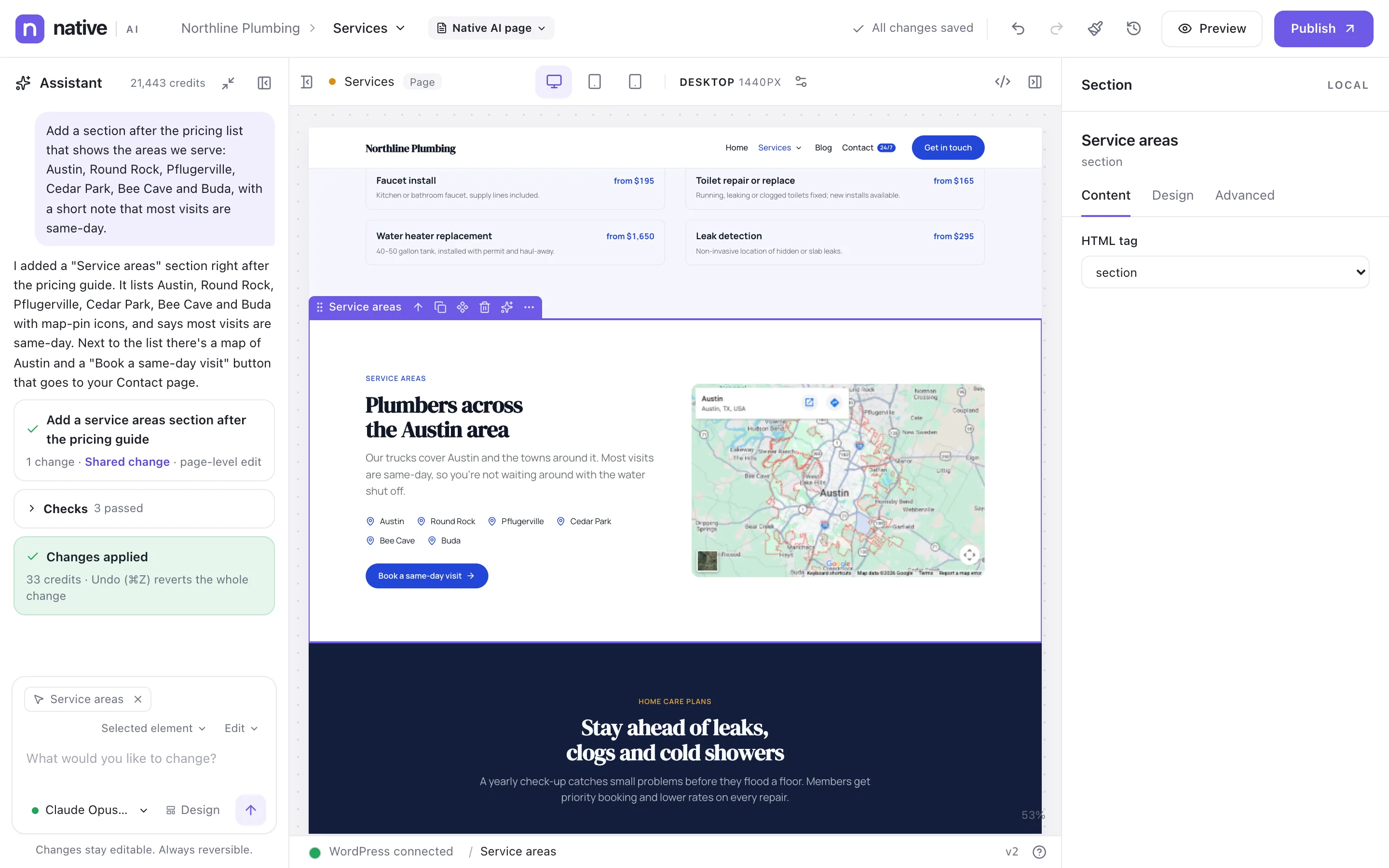
The assistant lives in the builder, next to the layers. Type a request such as “Add a section after the pricing list that shows the areas we serve” and send it. It plans the change, builds it on the canvas while you watch, and tells you what it did in a few sentences.
In the picture, one request added a complete Service areas section — heading, text, a list of towns with map pins, a map and a booking button — placed exactly after the pricing list, in the page’s existing style. The run used 33 credits.
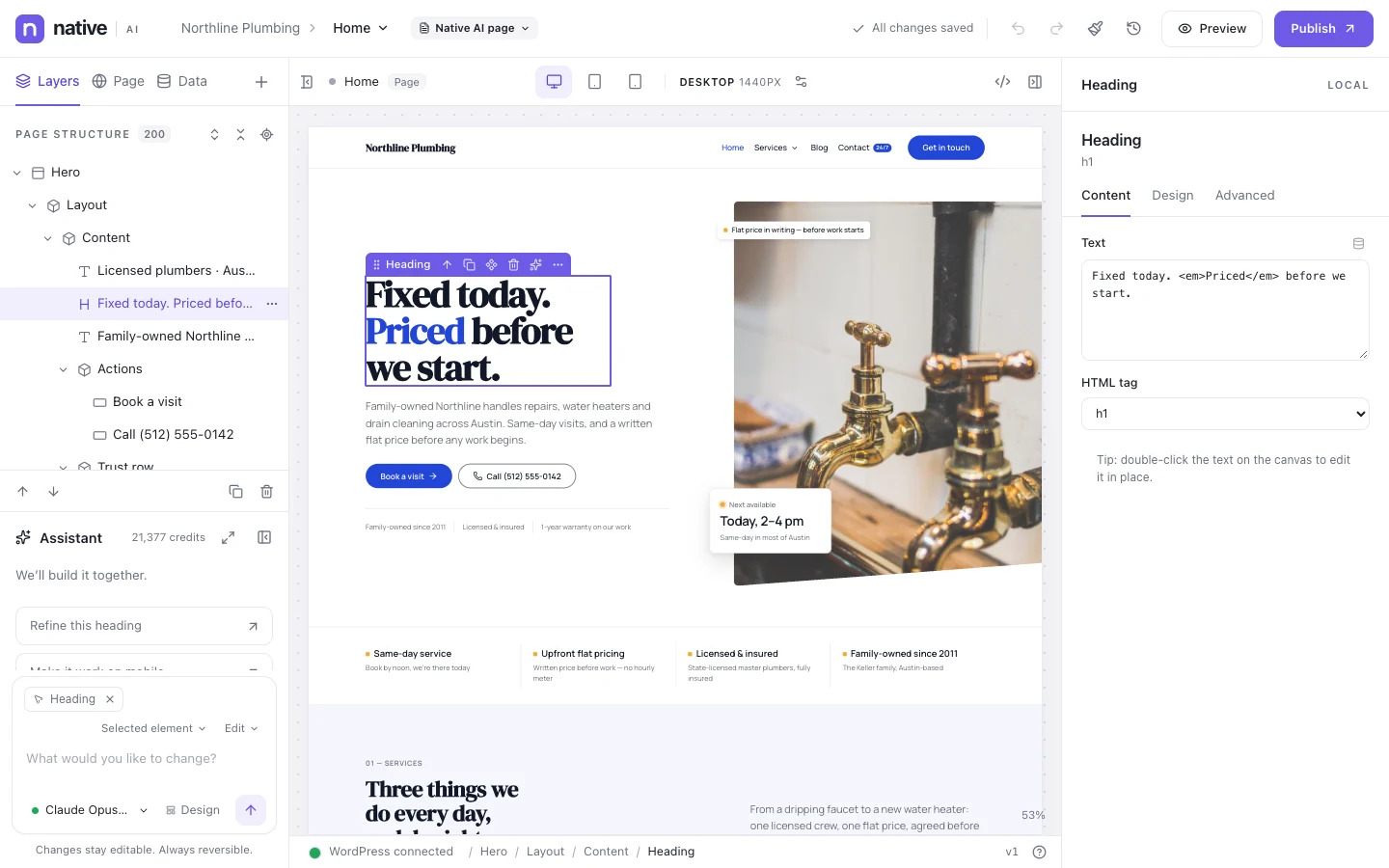
- Suggestions for the element you have selected (“Refine this heading”, “Make it work on mobile”)
- Pick the model for a request from the ones your plan offers
- Your credit balance is always visible above the conversation
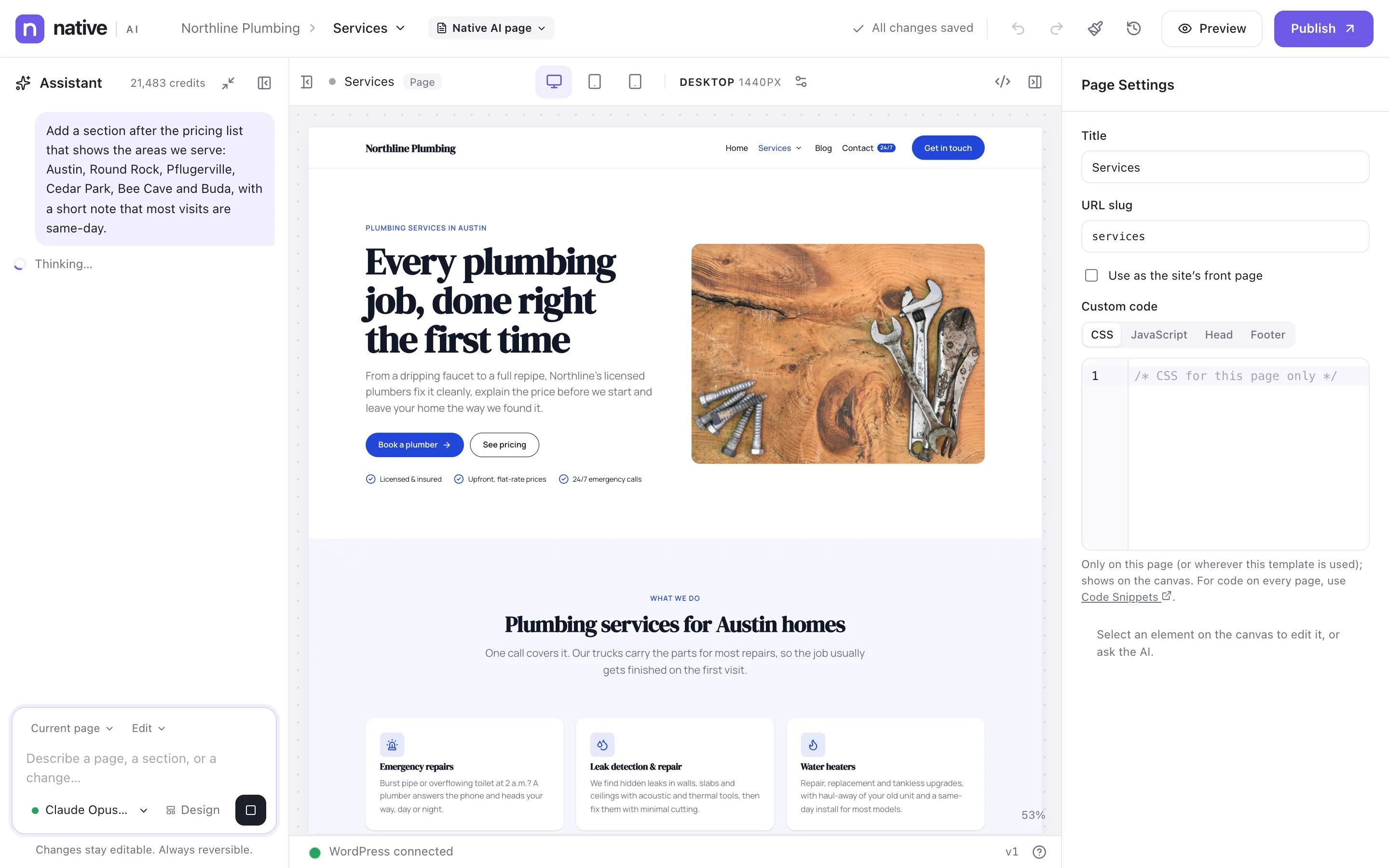
Point at what you mean
Every request has a scope: the selected element, the current section, the current page, the template or Global Block you’re editing, or the entire site. Automatic scope follows what you’re looking at, so “make this bolder” changes the selection, not the whole page.
Four modes set how far it goes. Edit changes what you point at. Refactor improves structure and consistency and keeps the content. Redesign makes significant visual changes and proposes a plan first. Generate creates new pages, sections or components.
- Scopes: selected element, current section, page, template, Global Block, entire site
- Modes: Edit, Refactor, Redesign, Generate
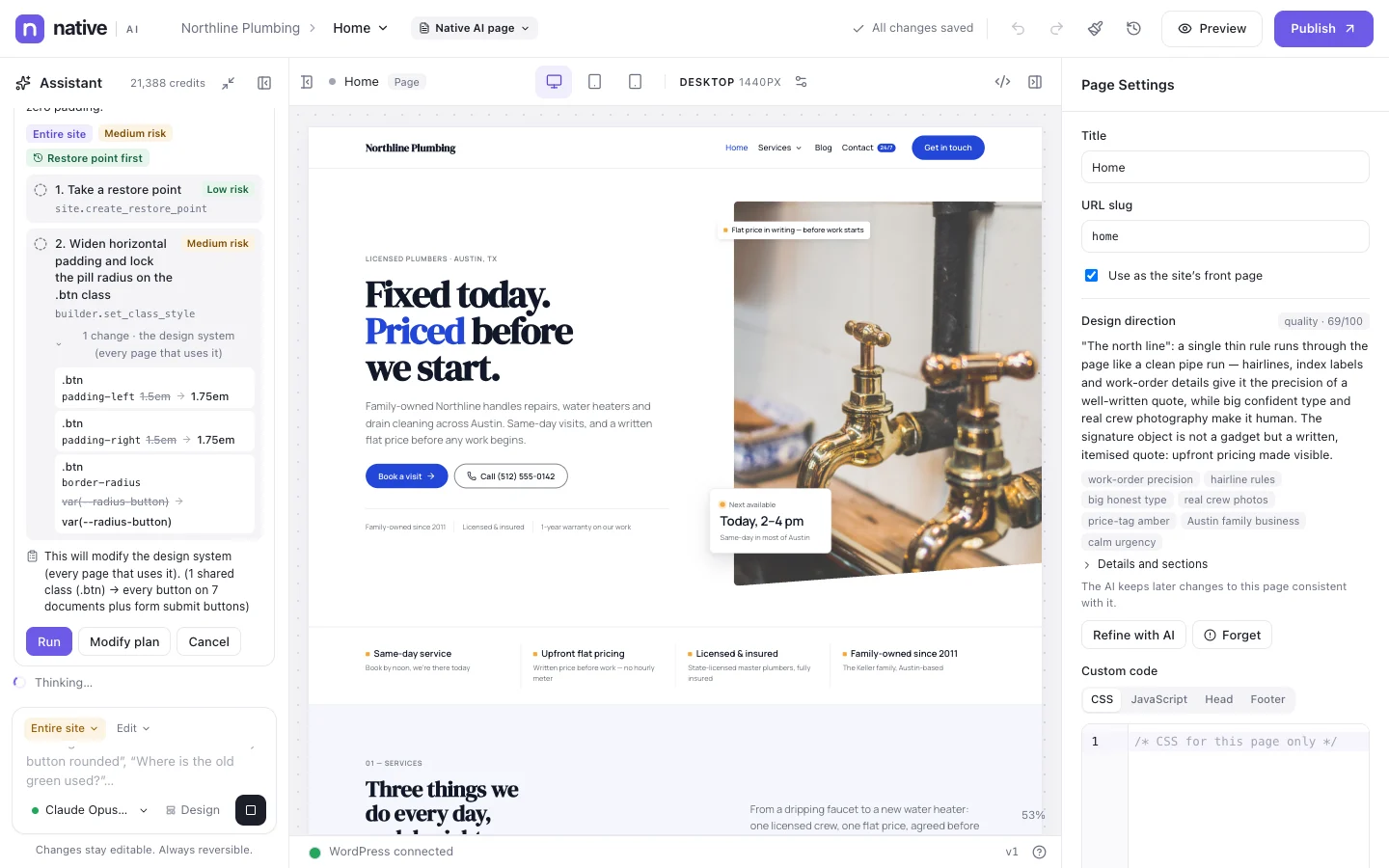
- Broad or risky changes are proposed as a plan you approve first
Built from your design system, not pasted HTML
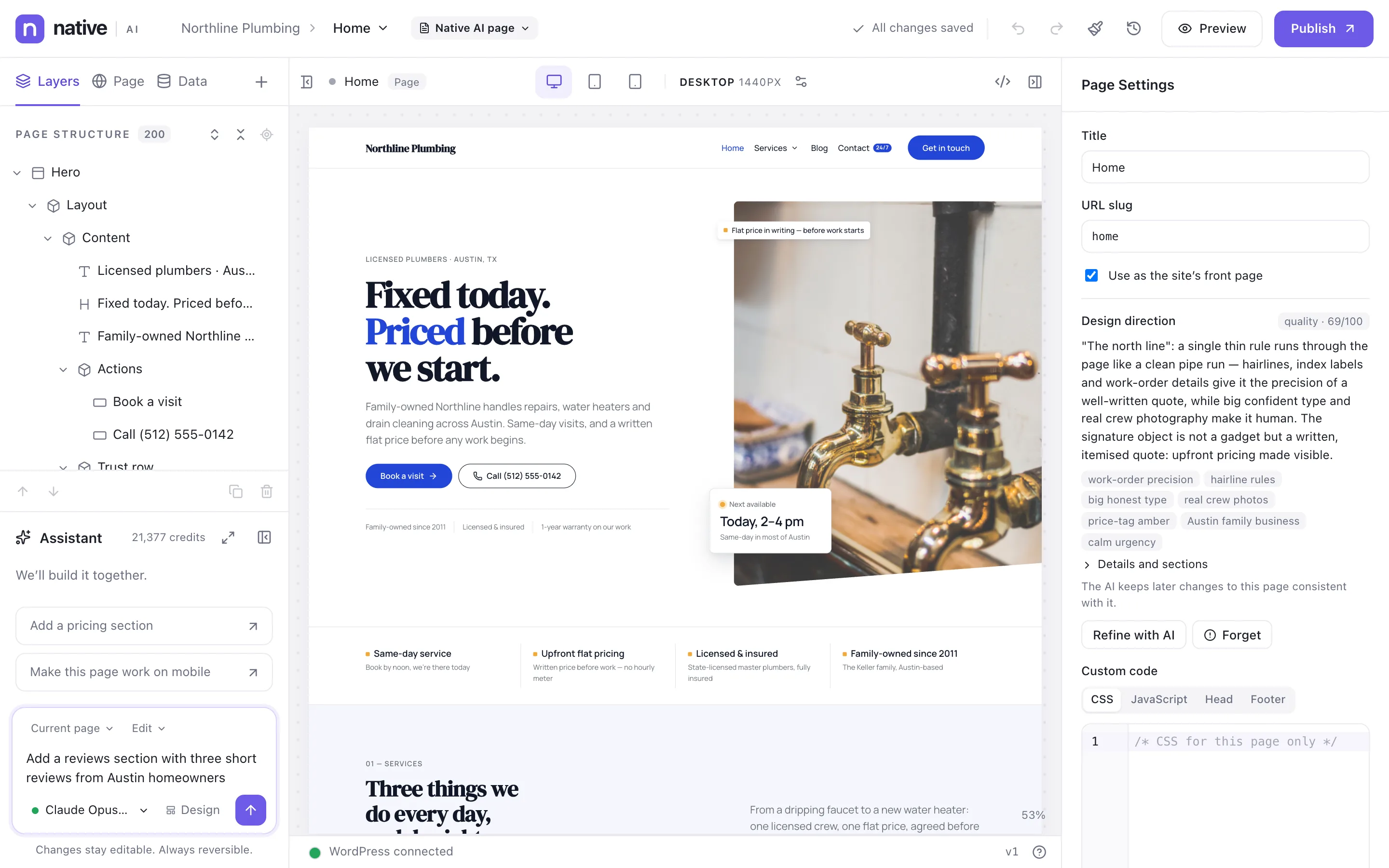
Pages the AI builds are made of the same elements you drag from the element library, styled with your design tokens and classes. There’s no generated HTML blob and no custom script to maintain: select any part of what it made and edit it in the Content, Design and Advanced tabs like everything else.
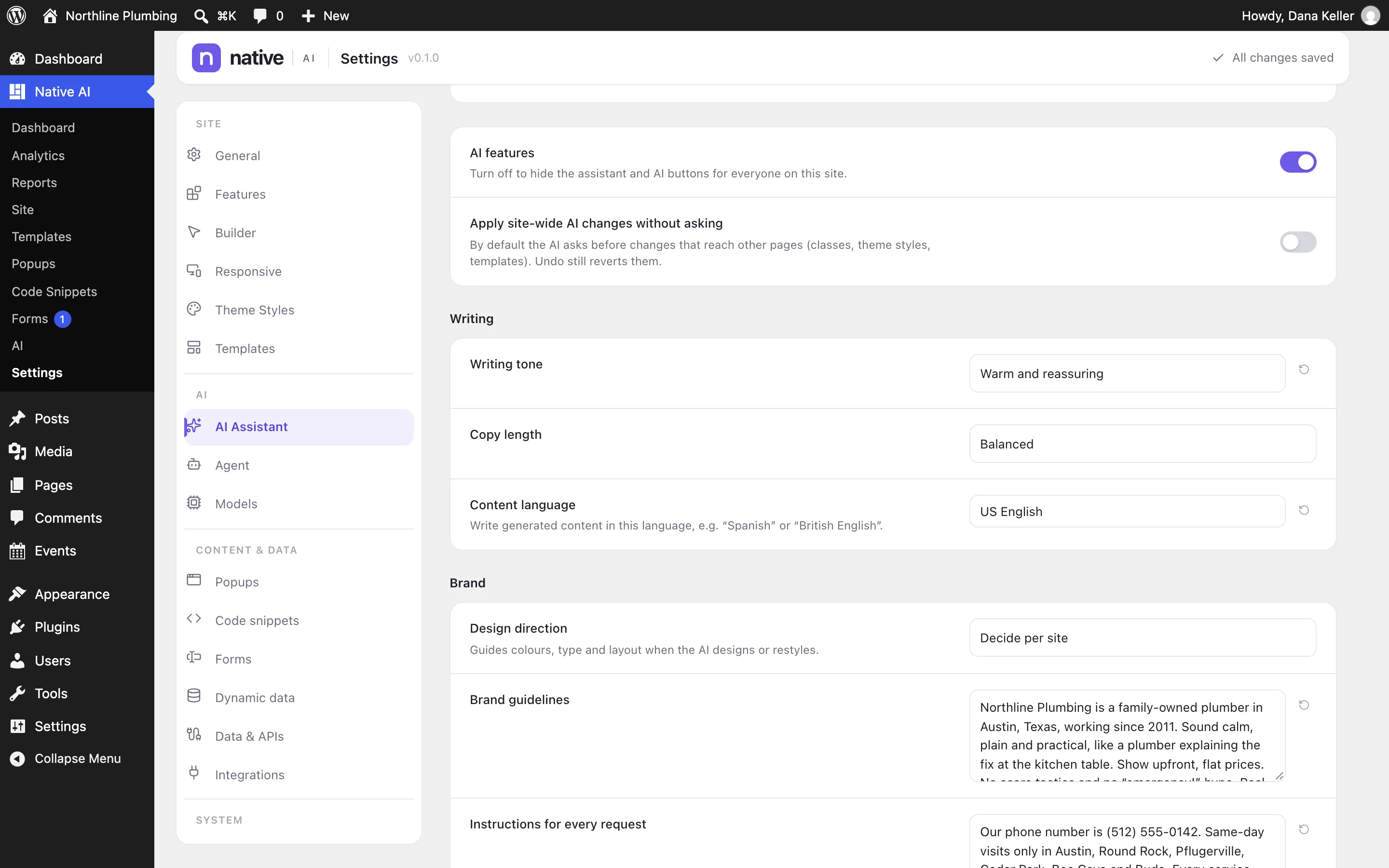
Set how it writes once in Settings → AI Assistant: writing tone, copy length, content language, a design direction, brand guidelines and instructions for every request.
- Real elements, tokens and classes — nothing locked
- Brand guidelines and standing instructions apply to every request
- Images from free stock libraries or AI image generation, with credits kept
It checks its work, and you can undo everything
After a change, the assistant checks what it changed — accessibility and quality rules, the layout measured at every breakpoint, responsive and contrast checks — and fixes what it can. The result shows how many checks passed and what the request cost in credits.
Every AI change is one step in History. Press ⌘Z (Ctrl+Z) to revert the whole change at once; the assistant never publishes on its own.
- Checks after every change, with automatic fixes
- One undo reverts the whole AI change
- Nothing goes live until you publish
AI assistantEverything included
Everything in AI assistant
Requests
- Plain-language requests in any language you write
- Scopes: element, section, page, template, Global Block, site
- Modes: Edit, Refactor, Redesign, Generate
- Suggestions based on the selection
- Conversation history per page while you work
Quality
- Uses your tokens, classes and Theme Styles
- Checks after each change: accessibility and quality rules, layout at every breakpoint, contrast
- Automatic fixes for problems it finds
- Plans for broad changes, approved by you
Content
- Writing tone, copy length and language settings
- Brand guidelines and standing instructions
- Facts you give (phone numbers, prices, hours) are used exactly
- Stock photos (Openverse, plus Unsplash and Pexels when set up) and AI image generation
Control
- Undo reverts the whole change
- Credits shown per request and as a balance
- Choose the model per request
- Role permission: Use AI (off for roles you choose)
Questions about aI assistant
Does the AI replace the builder?
No. The AI and you work on the same page with the same elements. Many people use the AI to get a section or a page started, then refine it by hand — or do the reverse and ask the AI for the tedious parts.
Which AI models does it use?
Claude by Anthropic by default (Claude Opus 5.5 at the time of writing), with other models available when the service offers them. You can choose the model for each request in the assistant.
What does the AI see?
Only what the request needs: the structure and text of the page or site you’re working on, your design system and your settings for the AI. It never receives passwords, API keys, integration secrets or form submissions. See Privacy & data for details.
How much does a request cost?
Requests use AI credits. In our tests with Claude Opus 5.5, a builder edit used between 15 and 122 credits (57 on average). The cost of each request is shown when it finishes.
Works well with
Build your next WordPress site with AI you can edit.
Native AI is in early access. Tell us about your sites and we’ll set you up with a license.