DocsContent Studio
Plan and schedule posts on the calendar
The content calendar shows a month of posts — published, scheduled, drafts and ideas — and lets you plan a run of posts, move them between days and schedule them.
Native WP AI → Content Studio → Calendar shows a month at a time. Each post sits on its day, with a dot for what it is:
| Where it sits | Can you move it? | |
|---|---|---|
| Published | The day it went live. | No — published posts keep their day. |
| Scheduled | The day and time it will publish. | Yes, to a day that hasn’t passed. It publishes then. |
| Draft | The day planned for it. Drafts with no day yet are listed beside the calendar. | Yes. Moving a draft only changes its planned day; it doesn’t publish. |
| Idea | The day planned for it (a dashed outline). An idea is a draft with a title and a brief, not written yet. | Yes. |
| Writing | Being written by the AI right now. | Wait a moment. |
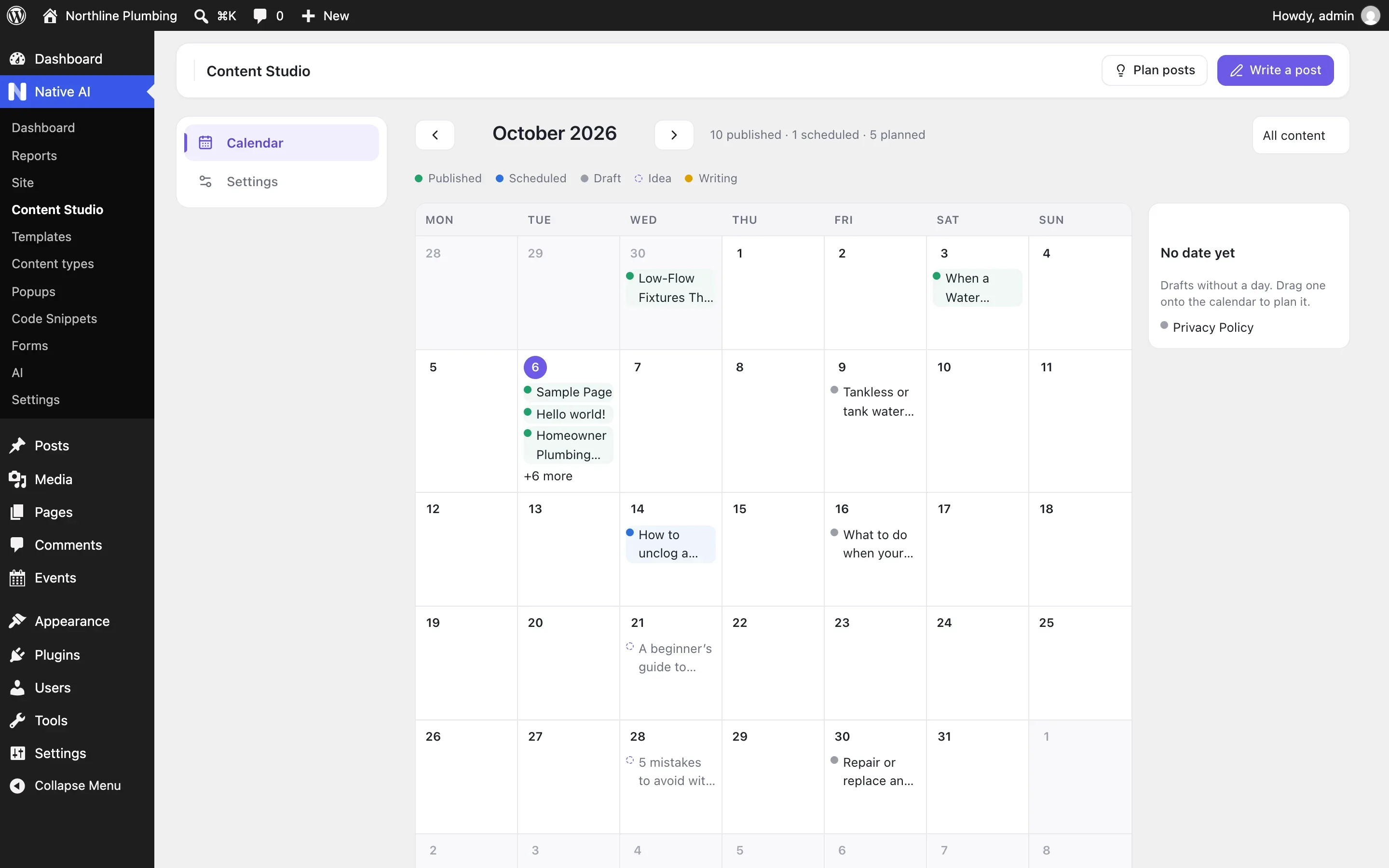
Drag a post onto another day to move it, or drag a draft from No date yet onto the calendar to plan it. Choose one content type at the top right, or see them all.
Plan a run of posts#
- Give a themeClick Plan posts and say what the posts should be about (“getting a home’s plumbing ready for winter”).
- Choose how many and how oftenUp to 20 ideas, from a first day, one every day, few days, week, two weeks or month.
- Write them when you’re readyThe ideas appear on their days. Open one and click Write it; it’s written with your settings and stays on its day.
Planning uses a few AI credits; nothing is written until you choose Write it.
Open a post#
- Edit in WordPress and Preview for anything written.
- Schedule it on a day and time, or change when a scheduled post publishes; Unschedule turns it back into a draft on its day.
- Take off the calendar moves a draft back to No date yet; Move to the trash removes a draft or an idea (restorable from the trash).
Related articles
On the features pages
Still have a question? Email us at support.