Put WordPress data — the post’s title and date, the author, custom and ACF fields, the visitor’s name, the current year — into any text, link, image or setting, with a fallback for empty values.
Dynamic data is written as a token inside ordinary text: Written by {author_name} on {post_date:F j, Y}. When the page is shown, Native WP AI replaces each token with its value. Tokens work in any text, link, image, HTML attribute and background, and in form fields, menu labels and conditions.
{name} — a value, like {post_title}.
{name:argument} — with an argument, like a date format or a field name: {custom_field:city_name}.
{name|fallback} — with text to show when the value is empty: {custom_field:city_name|our city}.
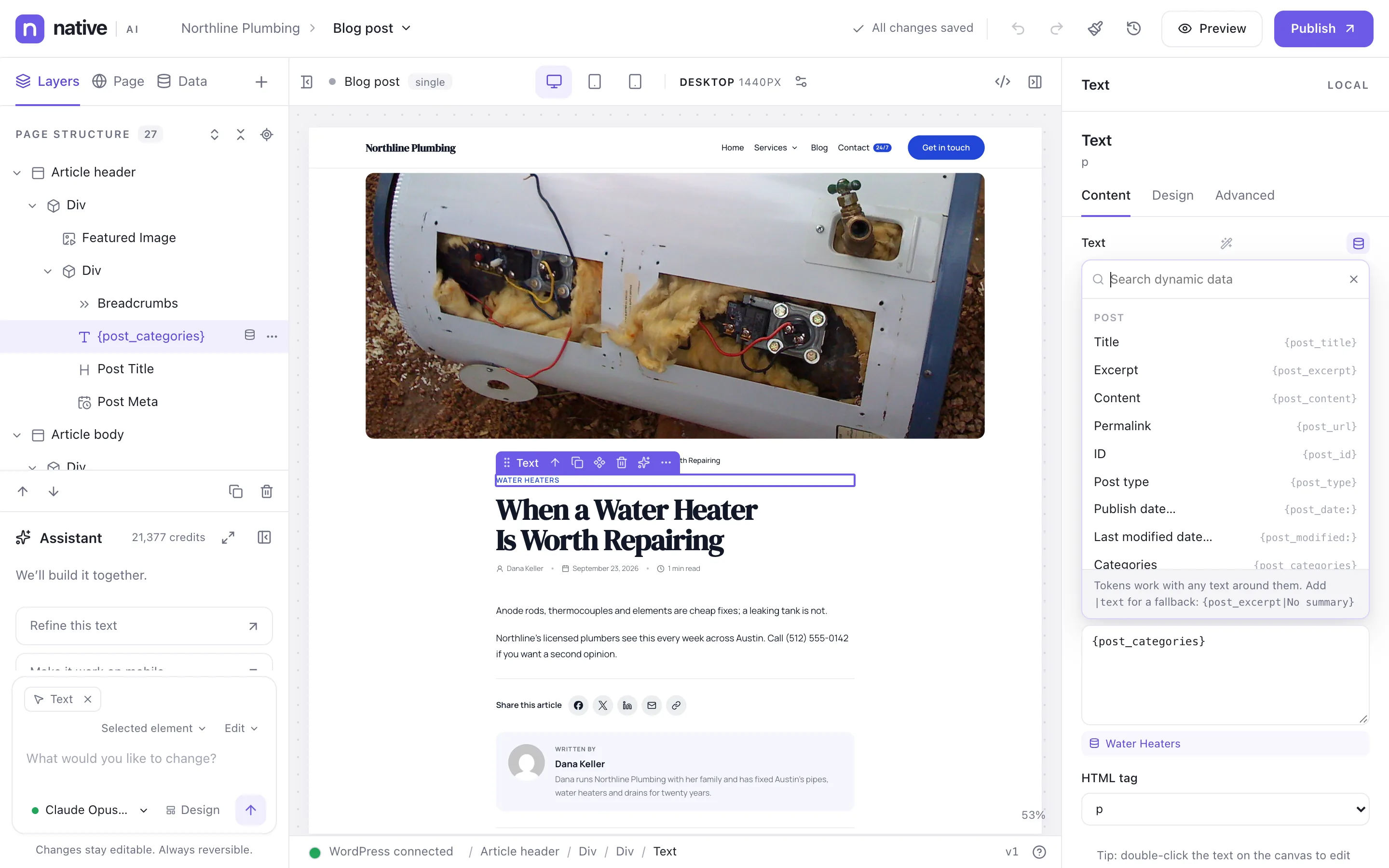
You don’t have to type them: every field that accepts dynamic data has a picker next to it, grouped and searchable, that asks for the argument and the fallback and shows a live preview. The canvas shows real values from a preview post, so templates look like the real thing while you design.
northline-plumbing.example/?nativeai=edit
The dynamic data picker: post, author, site and custom fields.
Inside a Query Loop, post tokens show each result’s own data. In a template, they show the post, term or author being viewed. {item:…} reads the current record of a loop over external data, and {api:@source.path} reads a data source anywhere on a page.
The picker lists your field groups and their fields by label — Native WP AI’s own and, with Advanced Custom Fields (free or PRO) or Secure Custom Fields active, ACF’s — and only offers the fields that fit: images where an image goes, links and files in links, galleries in galleries. Every field type works:
Field type
In text
In a link
As an image
Text, text area, number, email, URL, editor, oEmbed, date, time
The value
URL fields
—
Color
The color (#ff6600, or rgba(…) with opacity), also for styles
—
—
Select, checkbox, radio, button group
The choice (as ACF returns it); several are listed
—
—
True / false
“Yes” or nothing
—
—
Image
Its address
Its address
The image, with its alt text and sizes
Gallery
—
—
The first image; the whole list in a dynamic gallery (below)
File
Its title
The file
—
Link
Its text
Its URL (and it opens in a new tab if set so)
—
Post object, relationship, page link
The post titles
The post’s address
{acf_image:field.image}: the post’s featured image
A dot reads inside a value: {acf:hero.title} (a group’s sub-field), {acf:tickets.url}, {acf:brochure.size}, {acf:photo.alt}, {acf:venue.city}.
Prefixes read other places: {acf:option:phone} an options page, {acf:term:color} the archive’s term, {acf:user:company} the logged-in visitor.
Password fields are never shown. Private fields (names starting with _) and fields that look like credentials are hidden too. Settings → Dynamic data → Always allow these custom fields makes exceptions; Never show these custom fields hides more.
Settings → Dynamic data → Advanced Custom Fields turns ACF support off.
An Image Gallery or Image Carousel can take its images from the post: select it, click Use dynamic images above its images, and pick an ACF gallery, a repeater’s image sub-field (each row’s photo), the featured images of a relationship field, or Product images (the WooCommerce product’s main image and gallery). Inside a loop over data, a list of images in the record works too.
Each post shows its own images, with their alt text, captions and responsive sizes; the lightbox, layout and hover effects work as usual. A post with no images shows an empty gallery on the site. The gallery’s own images only show in the builder then, so you can still design it.
Values are escaped for where they go: plain text in text, safe URLs in links (anything unsafe becomes #), validated values in styles. In the builder, custom fields are only previewed for posts you can edit.
Cookies We use cookies to see how this site is used and to measure our ads. Choose what you allow; you can change it any time with Cookie settings at the foot of each page. What they collect