FeaturesRunEmail delivery
Email that arrives — and a log that shows why it didn’t
Connect Gmail, Microsoft 365, Zoho or any SMTP server, or an email service such as SendGrid, Mailgun, Postmark or Amazon SES, and everything your site emails goes through it: forms, the CRM, reports and WordPress itself. Add a backup connection that takes over when the first fails, and see every email sent — and the plain-English reason when one didn’t — in the log.
- SMTP presets and API connections for the common providers
- A primary and backups, tried in order
- A log of every email, with the reason when one fails
Your account, your sending
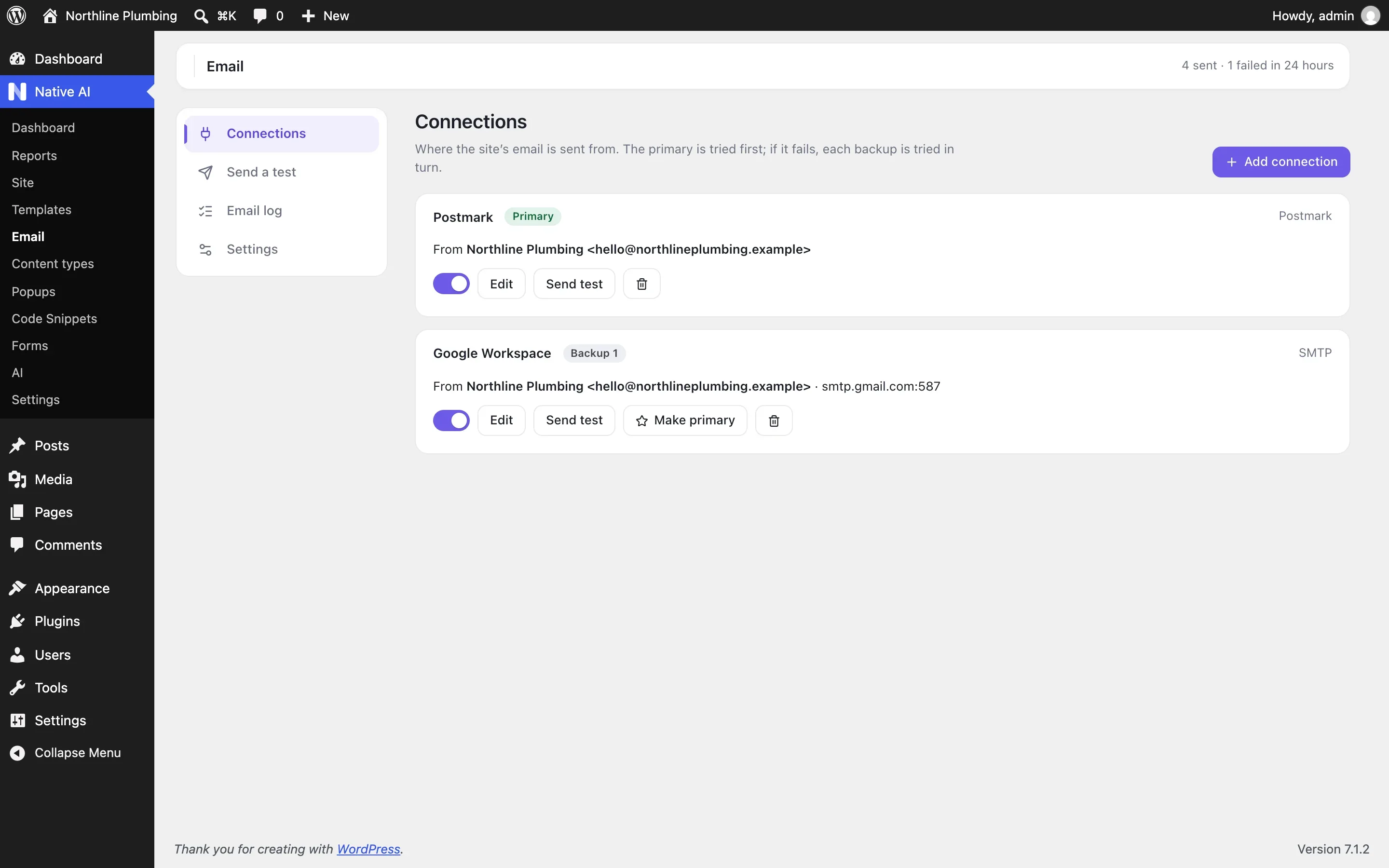
Pick a provider, enter the from address and paste the password or key. SMTP presets fill in the host, port and encryption for Gmail, Microsoft 365, Zoho, Yahoo, iCloud, Fastmail and more; API connections for SendGrid, Mailgun, Postmark, Amazon SES, Brevo, Resend, SparkPost, Mailjet and Mailtrap work over ordinary HTTPS, so they work on hosts that block SMTP ports.
Keys are stored encrypted and never shown again — not in the browser, not to the AI. Send a test from the screen and see exactly what the provider answered.
- Ten kinds of connection
- Keys encrypted, never shown again
- A test send that shows every connection tried
A backup when the first fails
Mark one connection primary and add others as backups. If the primary refuses the login, can’t be reached or hits its limit, the next one sends the email — and the log shows both attempts. An address the provider rejects isn’t retried, because every provider would refuse it too.
Emails with attachments skip a connection that can’t carry them, and each connection keeps its own from address so providers accept the mail. Until a connection exists, email goes out exactly as WordPress sends it: nothing is ever held back.
- Failover in order
- Each connection has its own from address
- Never swallows mail
Every email, and why one failed
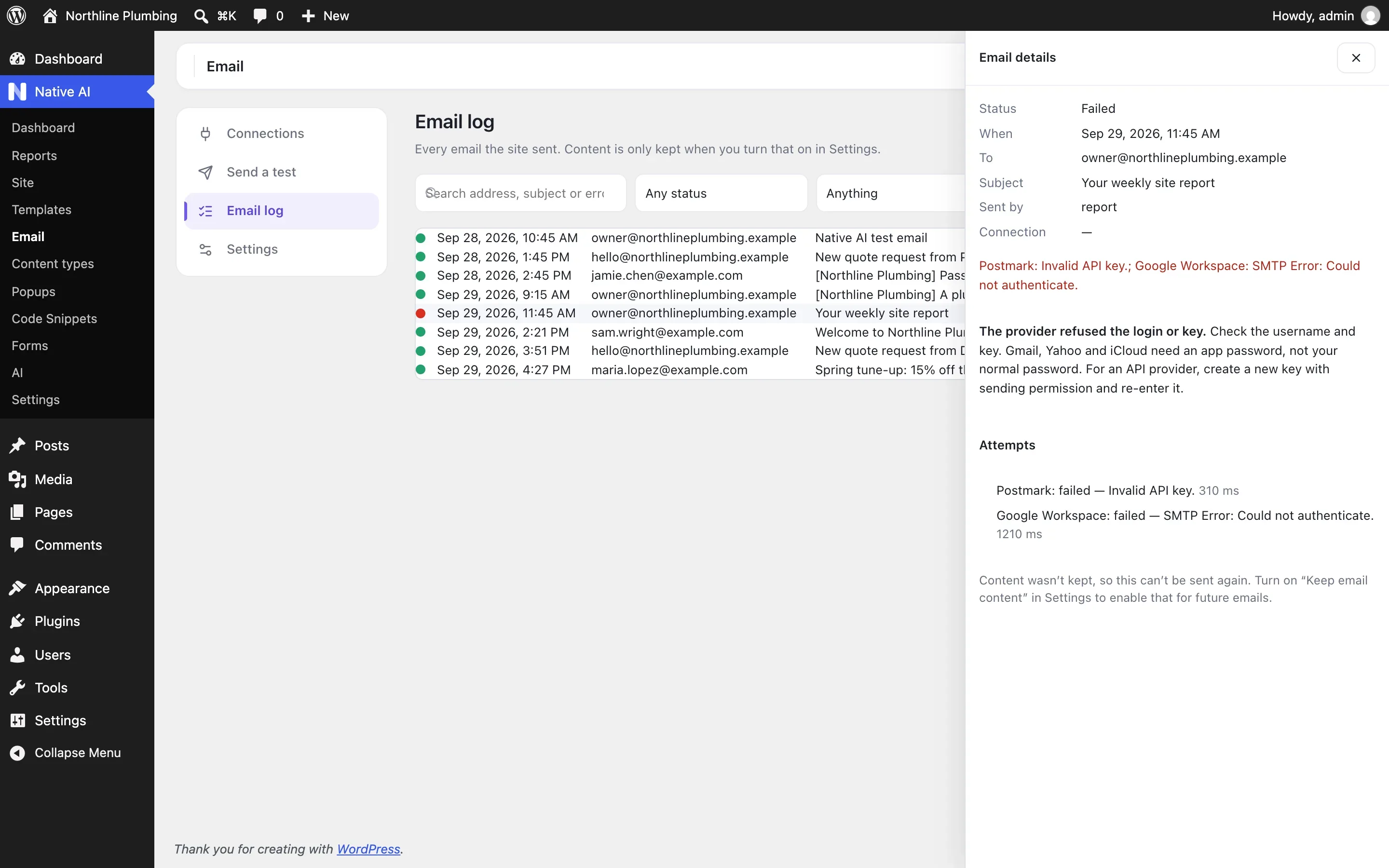
The log lists when each email was sent, to whom, what sent it (a form, the CRM, a report, WordPress) and which connection delivered it. Open one to see each attempt; a failed email comes with a plain explanation — wrong app password, a blocked port, an unverified sender, a rejected address — and what to do about it.
Message content is only kept if you turn that on, so you can read and resend an email. Search, filter by status, sender or date, export to CSV, and choose how long entries are kept.
- Search and filters
- Plain-English reasons and fixes
- Content kept only if you choose, with resend
Email deliveryEverything included
Everything in email delivery
Connections
- SMTP with presets: Gmail / Google Workspace, Microsoft 365, Zoho, Yahoo, iCloud, Fastmail, Namecheap, GoDaddy, IONOS and each API provider’s SMTP settings
- API: SendGrid, Mailgun, Postmark, Amazon SES, Brevo, Resend, SparkPost, Mailjet, Mailtrap
- A primary and backups tried in order
- A from address and name per connection, and an option to always use it
Log
- Time, recipients, subject, what sent it, connection and every attempt
- The provider’s message id and the error
- Search, filters, CSV export and retention (30 days by default)
- Message content kept only when you turn it on; resend from the log
Safety
- Keys encrypted at rest, never returned to the browser or the AI
- Line breaks stripped from subjects and headers
- Warns when another plugin also takes over sending
- Off: email goes out as WordPress sends it, and nothing is deleted
AI
- Read the status and the log, and explain a failed email
- Draft a connection for you to finish (you enter the key yourself)
- Choose the primary connection and change settings
- Asks before sending a test, resending, deleting a connection or clearing the log
Questions about email delivery
Do I still need an SMTP plugin?
No. Switch on Email delivery in Settings → Features, add a connection, and turn off email sending in any other SMTP plugin so the two don’t compete.
Where are my passwords and keys kept?
In your own WordPress database, encrypted with your site’s security keys. They are never shown again after saving, and never sent to the browser or to the AI.
What happens if it can’t send?
The next connection is tried. If every connection fails, the email is logged as failed with the reason, and WordPress and the plugin that sent it are told it failed, as they would be with any mail error.
Does it track opens or clicks?
No. It sends and logs. The CRM tracks opens and clicks in its own campaigns if you turn that on there.
Email deliveryKnowledge base
How to use it
Step-by-step articles, settings and answers in the knowledge base.
- Send your site’s email through SMTP or an email serviceEmail delivery sends everything your site emails — forms, the CRM, reports, WordPress itself — through your own SMTP account or an email service’s API, with a backup if the first fails.
- Read the email logThe Email log lists every email the site sent: when, to whom, which feature sent it, which connection delivered it and, when it failed, why.
- Why an email didn’t arriveThe common reasons a site’s email fails — a refused login, a blocked port, an unverified sender, a rejected address — and what to do about each.
Works well with
“Build a website for my plumbing business in Austin.”
Plans the pages and writes them in a look of their own, with a header, footer, templates and a design system you can edit.
“Make every button on the site pill-shaped.”
Finds the shared class behind every button, shows you the plan, then changes it once.
“Write meta descriptions for every page that doesn’t have one.”
Writes them from each page’s own words in a background job, shows the credits first, and puts each one beside its page for you to approve.
“Add an exit-intent popup offering a free consultation.”
A native popup with its trigger and how often it shows. It starts as a draft.
“Which pages lost visitors this month?”
Compares this month with last, page by page, and checks recent changes to those pages.
“Find unfulfilled orders.”
Lists the paid orders waiting to ship, oldest first.
“Write a six-lesson course on home budgeting with a quiz after each lesson.”
Writes the outline, every lesson and the quizzes as drafts for you to review, and sets who can take it.
“Why was a customer locked out this morning?”
Reads the security log, finds the lockout and its address, and can unblock it for you.
“Which plugins need updates?”
Lists the installed plugins and the ones with an update waiting.
“Use the color scheme of this website: https://…”
Opens the site, reads the colors and fonts it uses most, and sets your design system from them.
“Create a Services post type with Price and Duration fields.”
Its own menu in WordPress and custom fields — in ACF when it’s active — ready for a template.
“Add the prices from this PDF to the Services page.”
Reads the attached price list and builds it into the page in your design.
“Count quote requests as a conversion.”
Adds a conversion goal for the form, so Analytics counts every request.
“Show me low-stock products.”
Reads stock from WooCommerce and lists what’s running low or out, with how many are left.
“Refund order 1042 and put the items back in stock.”
Prepares the refund with the amount and how it’s paid back, and waits for your confirmation.
“When someone buys the course bundle, enroll them and tag them in the CRM.”
Builds the automation — the purchase, the enrollment, the CRM tag — as a draft, and asks before switching it on.
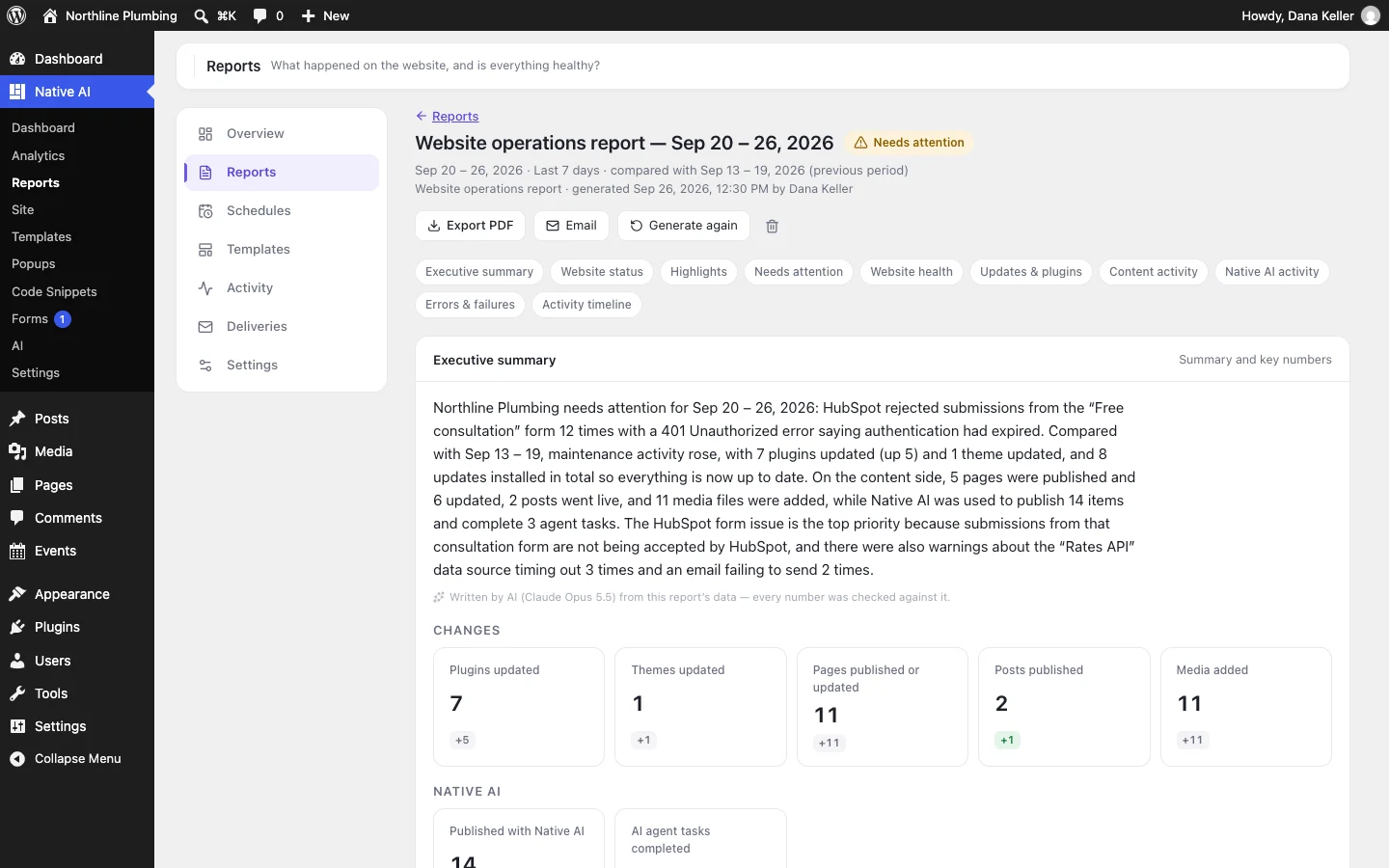
“What happened on the site this week?”
Reads the activity record, updates, errors and health checks, and sums them up.
“Add a snippet that turns off comments on pages.”
Writes and checks the code, and saves it as a draft that you switch on.
One plugin. One agent. Your whole site.
Start free: a license for one website and AI credits to build with, no card needed. Describe your business and watch Native WP AI design your home page.