Blog
Replace a Plugin a Week #3: Do You Still Need an SMTP Plugin?
Week three of Replace a Plugin a Week: Native WP AI Email delivery sends everything your site emails through your own SMTP account or an email service API, with backups tried in order and a log that explains failed emails in plain English. Here's what it covers, what it doesn't (no open or click tracking), and how to switch without losing a single email.
On this page
Welcome back to Replace a Plugin a Week. Each week we pick one plugin a typical WordPress site stacks up, look at what Native WP AI does in its place, and tell you honestly whether it's worth switching. One plugin at a time. No big, scary migrations.
Week one was security. Week two was the chatbot. This week it's the quiet plugin almost every serious WordPress site ends up installing sooner or later: the SMTP plugin.
You know the moment. A client calls and says "nobody's getting my contact form emails." You check the form, it looks fine, and now you're digging through settings trying to figure out where the email went. That's the problem SMTP plugins solve, and it's exactly what Native WP AI's Email delivery is built for.
First, respect to the SMTP plugin makers#
Plugins like WP Mail SMTP, FluentSMTP and Post SMTP have rescued a lot of contact forms. They made "send your site's email through a real mail account" something any site owner can set up, and plenty of people run them really well.
If yours is working, nothing here says you made a bad call. This is just another way to get there: email delivery that lives inside the same plugin as your builder, forms, CRM and reports, instead of one more plugin to install and keep updated.
What Email delivery does#
The short version from the features page: connect Gmail, Microsoft 365, Zoho or any SMTP server, or an email service such as SendGrid, Mailgun, Postmark or Amazon SES, and everything your site emails goes through it. That means forms, the CRM, reports and WordPress itself.
Your account, your sending#
You pick a provider, enter the from address and paste the password or key. That's the setup.
SMTP presets fill in the host, port and encryption for you. The presets cover Gmail and Google Workspace, Microsoft 365, Zoho, Yahoo, iCloud, Fastmail, Namecheap, GoDaddy and IONOS, plus each API provider's SMTP settings.
API connections are there for SendGrid, Mailgun, Postmark, Amazon SES, Brevo, Resend, SparkPost, Mailjet and Mailtrap. These work over ordinary HTTPS, so they work on hosts that block SMTP ports. If you've ever fought a host that quietly blocks mail ports, you know why that matters.
Each connection has its own from address and name, with an option to always use it, so providers accept the mail.
A backup when the first one fails#
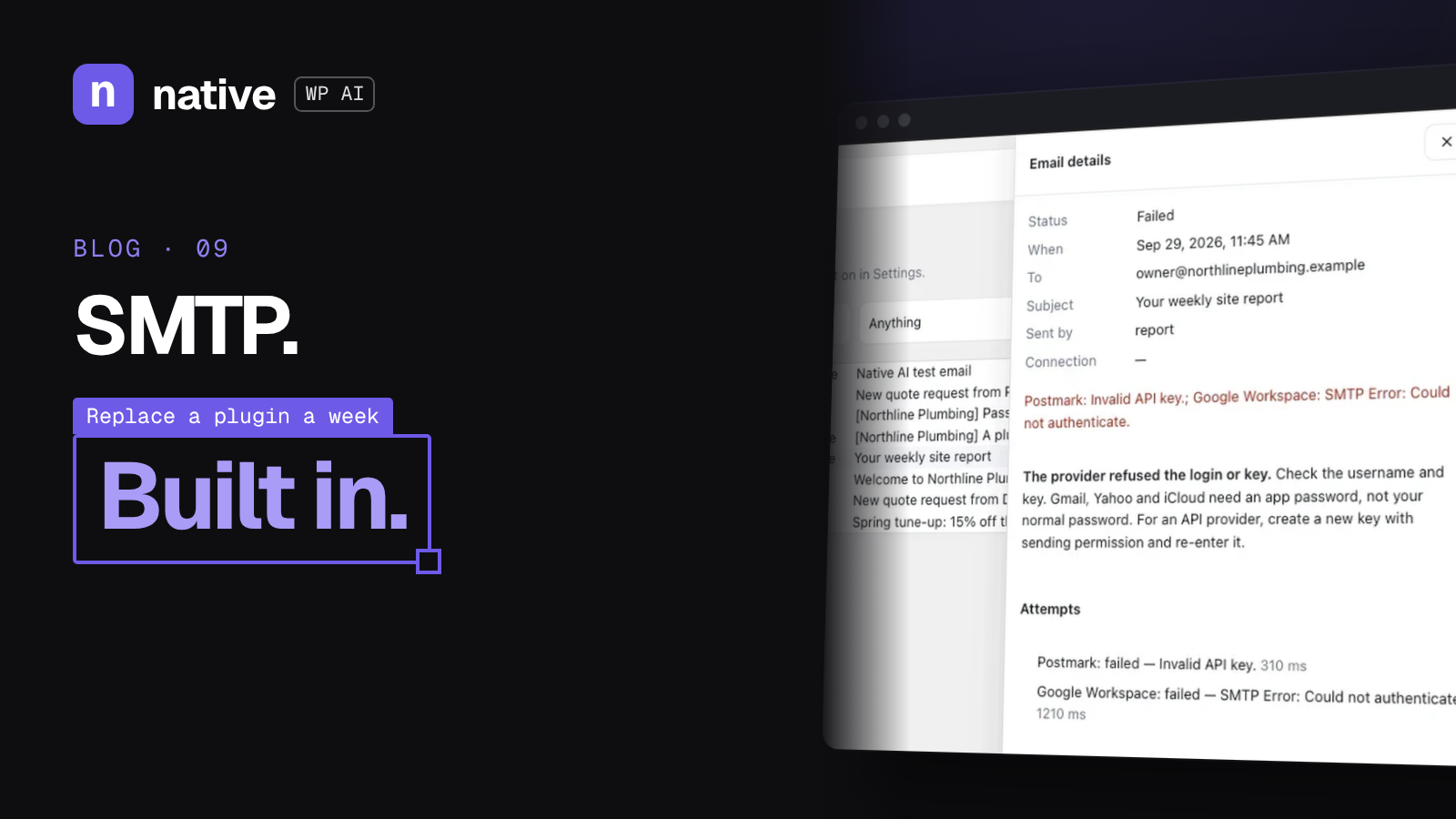
This is the part freelancers tend to love. You mark one connection as primary and add others as backups. If the primary refuses the login, can't be reached or hits its limit, the next one sends the email, and the log shows both attempts.
It's also smart about when not to retry. An address the provider rejects isn't retried, because every provider would refuse it too. Emails with attachments skip a connection that can't carry them.
And if every connection fails, the email is logged as failed with the reason, and WordPress and the plugin that sent it are told it failed, the same way they would be with any mail error.
A log that tells you why#
The Email log lists every email the site sent: when, to whom, the subject, what sent it (a form, the CRM, a report or WordPress), and which connection delivered it. Open one and you see each attempt, the provider's message id and the error.
The best bit: a failed email comes with a plain explanation, like a wrong app password, a blocked port, an unverified sender or a rejected address, plus what to do about it. No more decoding cryptic error strings at 11pm.
You can search, filter by status, sender or date, export to CSV, and choose how long entries are kept. The default is 30 days.
Message content is only kept if you turn that on. When you do, you can read an email and resend it right from the log.
Your keys stay locked away#
Passwords and keys are kept in your own WordPress database, encrypted with your site's security keys. After you save them, they are never shown again, and never sent to the browser or to the AI. You can send a test from the screen and see exactly what the provider answered.
The AI can help you read it#
Because this is Native WP AI, the AI agent can work with Email delivery too. It can read the status and the log and explain a failed email. It can draft a connection for you to finish, though you enter the key yourself. It can choose the primary connection and change settings.
And it asks before it sends a test, resends an email, deletes a connection or clears the log. Asking the AI something is an AI request, so it uses AI credits like any other request.
What it doesn't do#
Let's be straight about this, because it matters when you're deciding.
It doesn't track opens or clicks. Email delivery sends and logs. That's its job. If you want open and click tracking for campaigns, the Native WP AI CRM tracks opens and clicks in its own campaigns, if you turn that on there.
It isn't an email marketing tool on its own. It's the delivery layer: it gets your site's email out through a proper account and tells you what happened. Lists, segments and campaigns live in the CRM, not here.
It doesn't hold your email hostage. Until a connection exists, email goes out exactly as WordPress sends it. Nothing is ever held back. If you switch the feature off, email goes back to how WordPress sends it, and nothing is deleted.
What about cost?#
Native WP AI doesn't sell Email delivery as an add on. Every plan includes every feature. Pro is $99 a month for 3 websites and 3,000 AI credits every month. Agency is $249 a month for unlimited websites, 10,000 AI credits every month and white label for client sites.
So the real question isn't SMTP plugin versus SMTP plugin. It's whether one plugin can cover a stack of them, and email delivery is part of that stack.
How to switch without losing an email#
The site's own FAQ answers this one directly. Do you still need an SMTP plugin? No. Here's the calm way to do it:
Go to Settings → Features in Native WP AI and switch on Email delivery.
Add a connection. Pick your provider, enter the from address and paste the password or key.
Send a test and check what the provider answered.
Add a backup connection, so there's a second way out if the first one fails.
Turn off email sending in your other SMTP plugin, so the two don't compete. Native WP AI warns you when another plugin also takes over sending, so you'll know if you missed it.
Keep an eye on the Email log for the first few days.
Who should keep their SMTP plugin (for now)#
If your current setup does something specific you lean on every day, there's no rush. Compare carefully first, and switch when it suits you.
Where the built in Email delivery shines is when you're already simplifying: one plugin for the site, the forms, the CRM and the reports, with every email they send going through your own account and showing up in one log.
Try Email delivery free for 14 days#
Here's the offer: start a free 14 day trial of Native WP AI on one site, with 500 AI credits and no card needed. Switch on Email delivery, connect the mail account you already use, add a backup, and send a test. Then submit one of your own forms and watch it land in the log. Every feature is included in the trial, so you can try the CRM and reports while you're in there.
Start your free trial and try Email delivery
See you next week for Replace a Plugin a Week #4.
Was this post useful?
Comments
No comments yet. Start the conversation.